
🆕 User management sessions
This feature is a wrapper of connect sessions created to facilitate your integration by including several features like status handling/description, add of a new item after a connect session, management of shared accounts, etc.
The User Management Session feature provides a unified, hosted interface allowing your users (PSU) to manage all their banking connections (Items) in one place.
Technically, this acts as a wrapper around the Connect Session. It generates a link to a frontend view where Bridge centralizes item management, status reporting, and maintenance actions, significantly reducing the integration effort on your side.
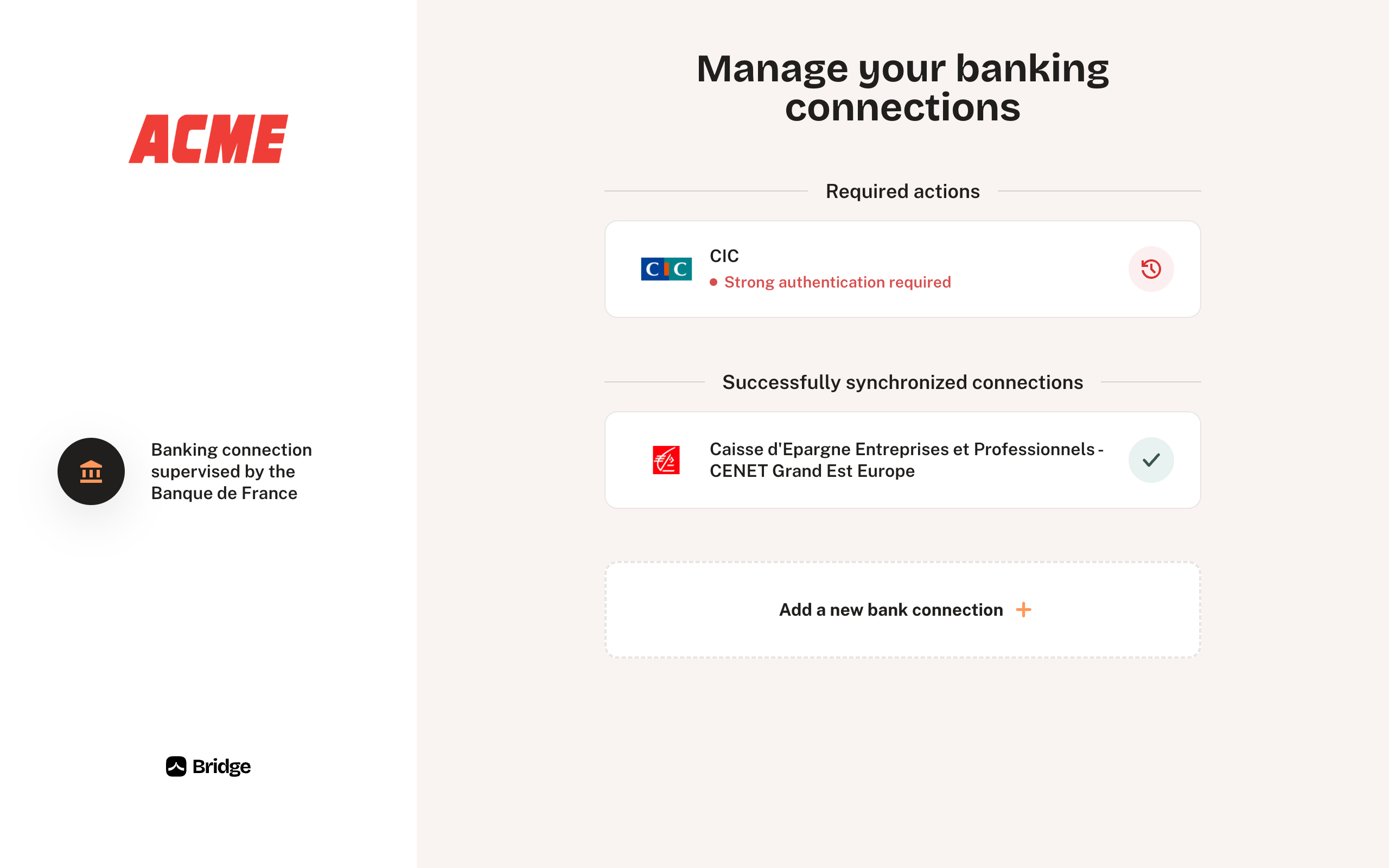
Why use User Management Sessions?
Traditional AIS integration often requires you to build logic to handle item statuses, error messages, and multiple redirections. This feature is designed to simplify AIS integration by offloading status management to Bridge and improving the user flow.
1. Offloaded Status Management & Wording
Bridge natively handles the translation of technical status codes (e.g., 1010, 402) into clear, user-friendly wording.
- Before: You had to listen to webhooks, parse the Item
status_code, and render your own error messages in your interface. - Now: Bridge displays the correct status directly (e.g., "Strong authentication requested") along with the appropriate action button.
2. Unified "Multi-Bank" Flow
This interface prevents the "redirection ping-pong" between your application and Bridge when a user needs to connect multiple institutions.
- The "Add a new bank connection" button allows users to add multiple banks within the same session.
- The user only returns to your application once they have finished all their management tasks.
How it Works
The interface is divided into two dynamic sections:
Actions Required (Priority)
If one or more Items require user intervention, they appear at the top of the list with a visual alert.
Example — Status 1010 (SCA Required): If an Item enters status
1010(Refresh token expired / SCA required), the interface displays "Strong authentication requested". When the PSU clicks on this item, they are seamlessly redirected to a specific Connect Session to perform Strong Customer Authentication (SCA) with their bank. Once completed, they are returned to the User Management view to see the status turn green.
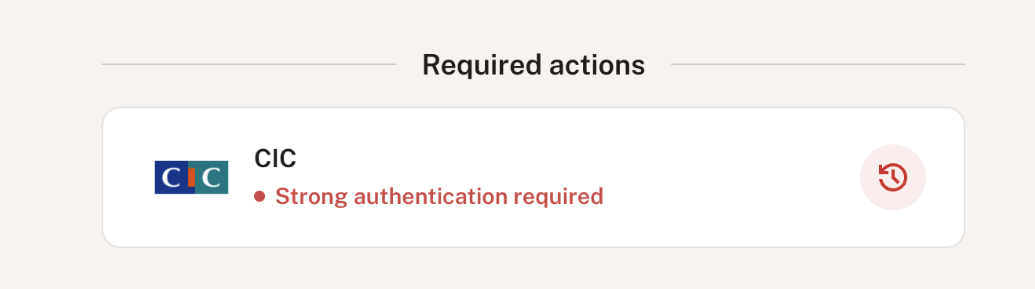
Successfully Synchronized Connections
This section lists all banks that are currently connected and healthy. This gives the PSU immediate visual confirmation that their data is up to date.
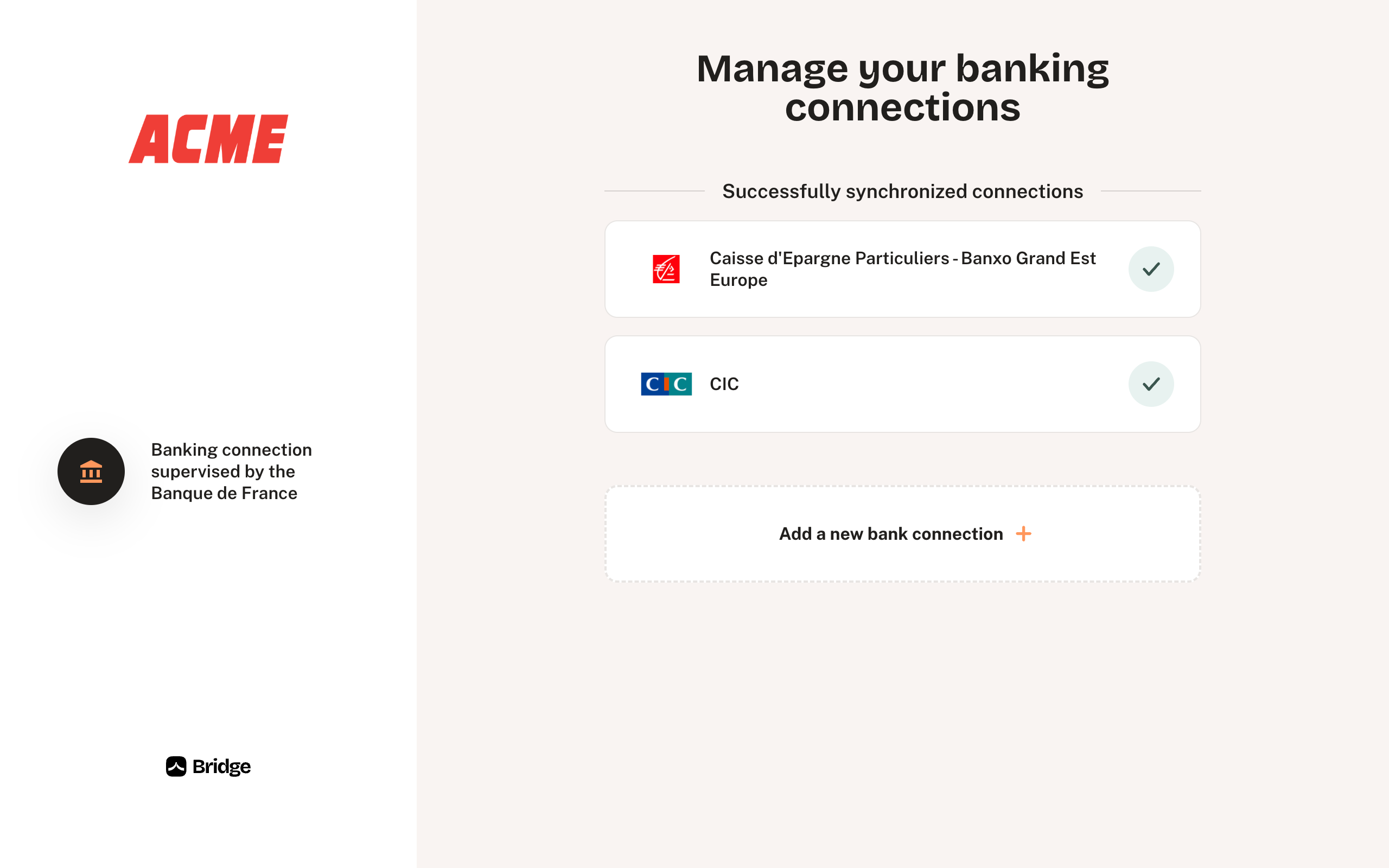
Technical Integration
Implementing this feature requires a single API call to generate the session link.
Endpoint
POST /v3/aggregation/user-management-sessions
Reference
Description
Instead of requesting a standard Connect URL, you request a User Management URL. The parameters are nearly the same as for a connect session and will be transmitted to nested Connect Sessions.
curl --request POST \
     --url https://api.bridgeapi.io/v3/aggregation/user-management-sessions \
     --header 'Bridge-Version: 2025-01-15' \
     --header 'accept: application/json' \
     --header 'content-type: application/json' \
     --header 'Authorization: Bearer TOP_SECRET_ACCESS_TOKEN' \
     --data '
		{
  		"user_email": "[email protected]"
		}
'{
"id": "a06e5de4-9af4-407e-8843-adfb642e1871",
"url": "https://connect.bridgeapi.io/user/a06e5de4-9af4-407e-8843-adfb642e1871"
}Simply redirect your user to the returned url. Once the user has finished managing their connections (adding banks or fixing errors), they will be redirected back to the callback URL passed in body if provided.
Hide the "Add a new bank connection" button
By default, a "Add a new bank connection" is displayed, if you don't want to allow your users to add new bank connections through the User Management Session, you can hide the button with this body param:
{
  // ...
  "show_add_item_button": false
}
Summary: Classic Integration vs. User Management
| Feature | Classic Integration | User Management Session |
|---|---|---|
| Error Handling | Partner must map codes to text | Managed by Bridge (Native wording) |
| Multiple Banks | Redirection to App after every bank | Centralized (Add multiple in one go) |
| Interface | Partner must build the dashboard | Turnkey Solution |
| Maintenance | Partner triggers specific update flows | Automatic (Click-to-fix) |
Updated 2 months ago